TriageQuant — Quick User Guide
How to connect TriageQuant to your Jira site, configure your Company DNA, and start scoring issues against your company's strategy, vision, goals, KPIs, values, and mission.
1. Installation (Jira administrator)
Installation is a one-time step performed by a Jira administrator.
- Go to ⚙ → Apps → Explore more apps and search for "TriageQuant".
- Click Get app / Install, then confirm the requested permissions.
- If the app isn't published yet on your site, install it via the developer-provided Forge link, or run:
forge login→forge deploy→forge install.
Verify the install: go to ⚙ → Apps → Manage apps — the list should show "TriageQuant".
2. Setup and configuration (administrator)
- Open settings: ⚙ → Apps → TriageQuant Settings.
- Fill in your Company Identity: Vision, Mission, Values, Goals, KPIs, and Strategy. The more precise and detailed this is, the more accurate the resulting scores will be.
- Save: click Save Settings and wait for the green "Saved" indicator before leaving the page.
- Add the score field: add the "DNA Score" field to each space where issues will be analyzed. Analysis results are stored in this field — see the steps below.
Adding the DNA Score field
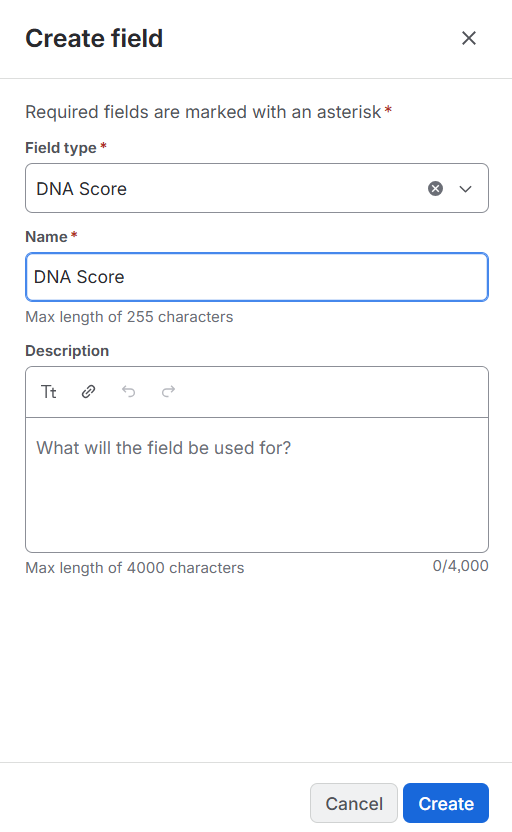
Open Space settings → Fields and click Add field. Set Field type to DNA Score, enter DNA Score as the name, and click Create.
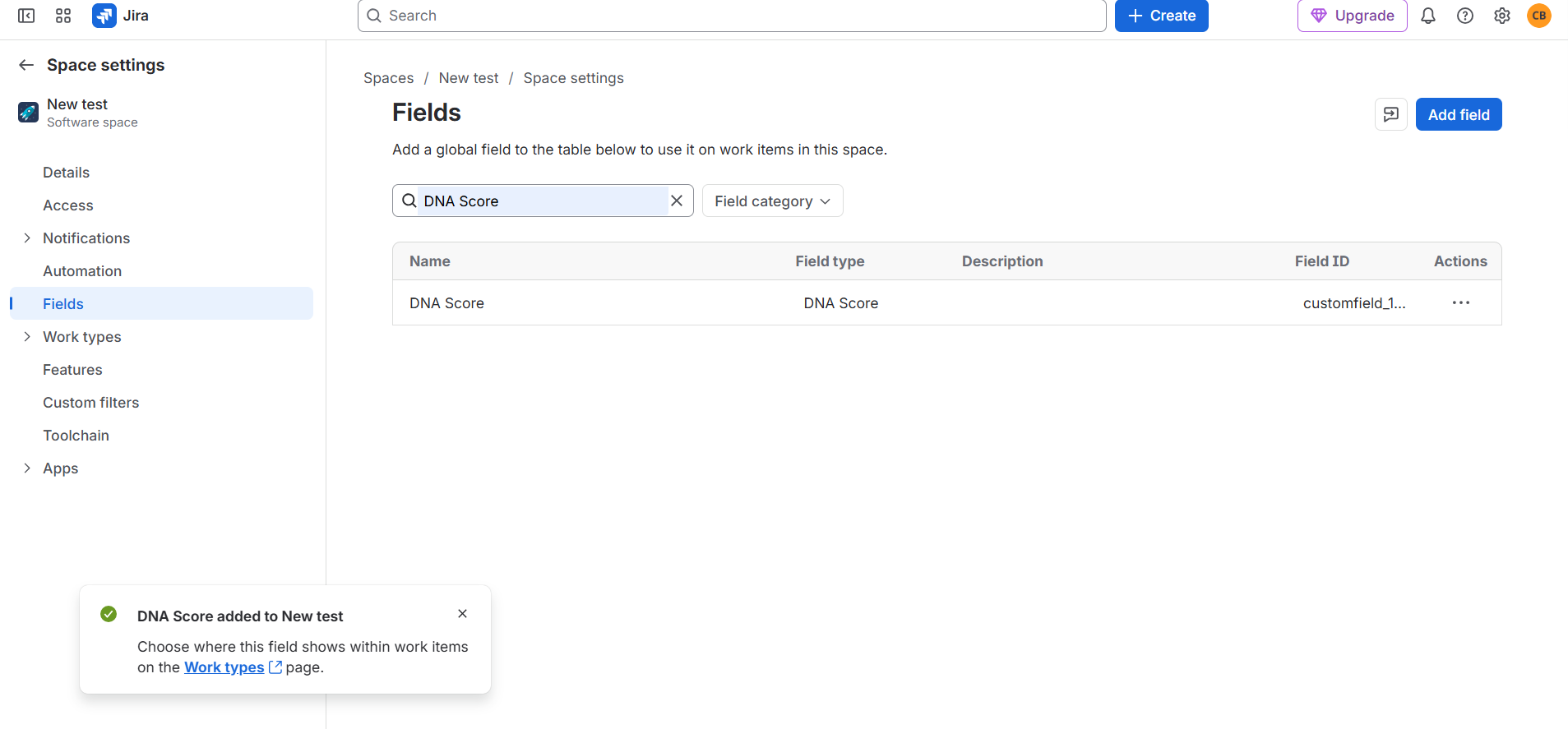
The field now appears in the space's field list. To choose where it shows on work items, follow the Work types link in the confirmation message.
3. Daily use (all users)
Analyze an issue: open an issue → in the "Apps" panel select Company DNA Analysis → click Analyse Issue → wait until the status changes to Complete.
Read the result: each analyzed issue shows a DNA Score (0 / 25 / 50 / 75 / 100), a per-dimension breakdown, an AI-generated rationale, and a score history.
Re-analysis: if the issue has changed since it was last scored, a "Score may be stale" warning appears — click Re-analyse to refresh it.
Portfolio overview: open the top Apps menu → Company DNA Dashboard for a summary of all scored issues across projects, their scores, and trends over time.
4. What you can do, by App Edition
Available features depend on your organization's App Edition — Free, Trial, or Paid — which your administrator sets based on your subscription.
| Capability | Free | Trial | Paid |
|---|---|---|---|
| Company-context configuration (strategy, vision, goals, KPIs, values, mission) | ✓ | ✓ | ✓ |
| Per-issue DNA Score (per-dimension + overall) | ✓ | ✓ | ✓ |
| Per-issue alignment / business impact / priority recommendation / considerations | ✓ | ✓ | ✓ |
| Cross-project portfolio dashboard | ✓ | ✓ | ✓ |
| Priority-change suggestions | ✓ | ✓ | ✓ |
| Over-/under-valued flags | ✓ | ✓ | ✓ |
| Evaluation allowance | 80 | 2,000 | 15,000 |
| Bulk / mass evaluation (JQL) | — | ✓ | ✓ |
| Bring-your-own LLM integration (Optional Mode) | — | — | Paid add-on (custom development) |
| KPI-system integration | — | — | Paid add-on (custom development) |
| Priority support (SLA) | Email / Priority queue | ||
| Advanced admin & security audit logging | — | — | ✓ |
Bring-your-own LLM integration and KPI-system integration are available on the Paid Edition as paid add-ons requiring custom development work — contact support@citiesbubbles.com to discuss a quote.
5. Common issues
"Analyse Issue" does nothing, or "There was an error invoking the function"
The analysis stops without a result, or shows a message like "There was an error invoking the function – The AI analysis could not be completed. Please retry the analysis." This has one of two causes.
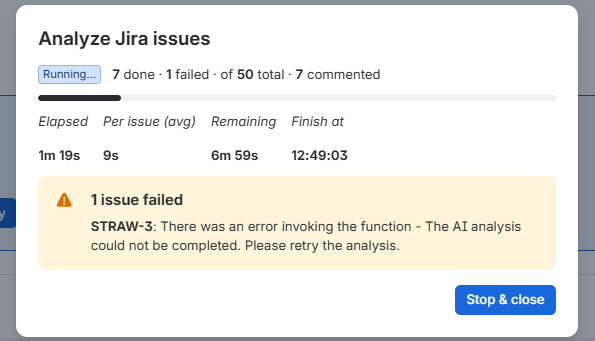
Cause 1: the AI server took longer than 10 seconds to respond
If the LLM server takes longer than about 10 seconds to return an answer, TriageQuant skips that response instead of keeping Jira waiting. Nothing is saved for that attempt, so the quality of your scores is not affected.
What to do: run the analysis again — click Analyse Issue on the issue, or re-run the bulk analysis for the failed issues.
If this happens often, requests can be processed on a dedicated server. Contact support@citiesbubbles.com and we will find the best option for your setup.
Cause 2: the app is not fully configured
Analysis cannot run until both of these are in place:
- Company identity is filled in: in ⚙ → Apps → TriageQuant Settings, complete Vision, Mission, Values, Goals, KPIs, and Strategy, then click Save Settings (see Section 2).
- The "DNA Score" field is added to the space: analysis results are stored in this field, so without it there is nowhere to save the score. See Adding the DNA Score field in Section 2.
Panel not visible
Open it from the issue's "•••" menu, under Apps.
"DNA Score" column is missing
Add it in your board or list's column settings — see Section 2.
Score looks outdated
Click Re-analyse on the issue to refresh it against the current issue content and settings.
6. Support
Reach us at support@citiesbubbles.com. Response times follow your App Edition's support terms — see the EULA, Schedule C.
Tip: the more thoroughly the company settings (Section 2) are filled in, the more accurate and useful the issue scores will be.